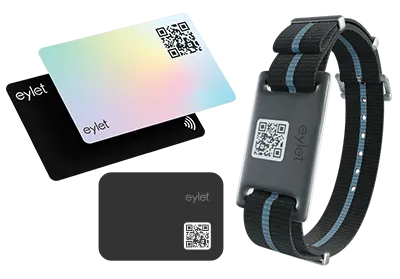

How to Attach Your Eylet Device to Your eylet Account

  1. Tap the button above to create a free eylet account.
  2. Register and skip any pop-ups. The app is used for programming and viewing reports.
  3. Open the hamburger menu (top left), then select Attach an eylet device .
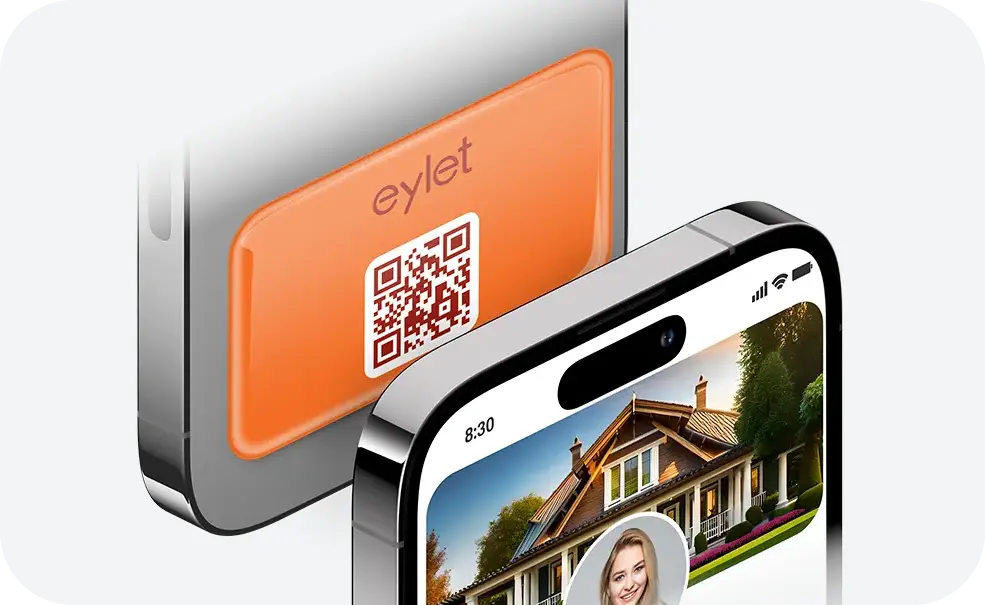
  4. Choose your device, and follow the steps to scan the QR Code.
  5. Tap Save.

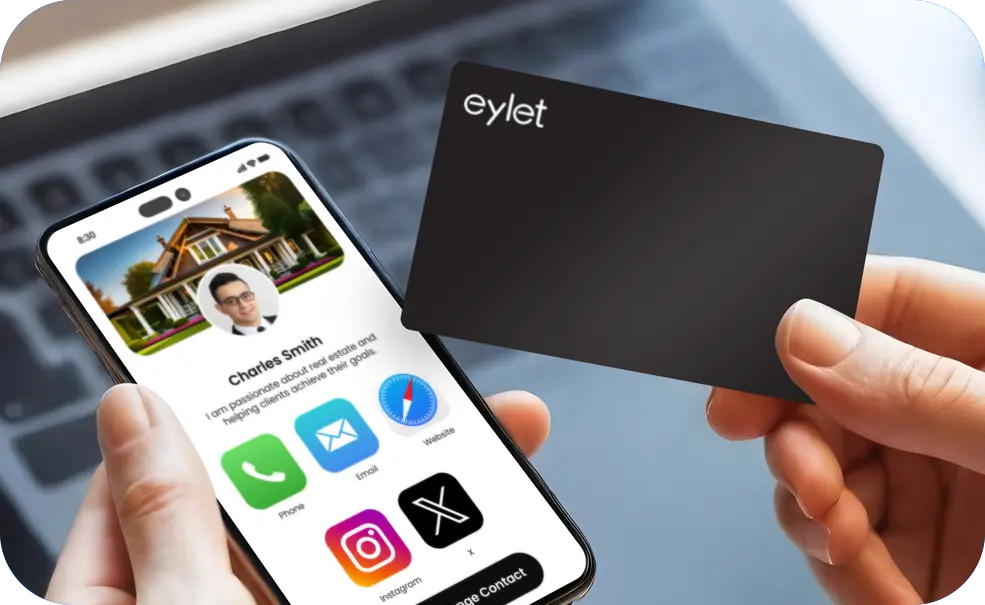
You're all set! Test by tapping the card.

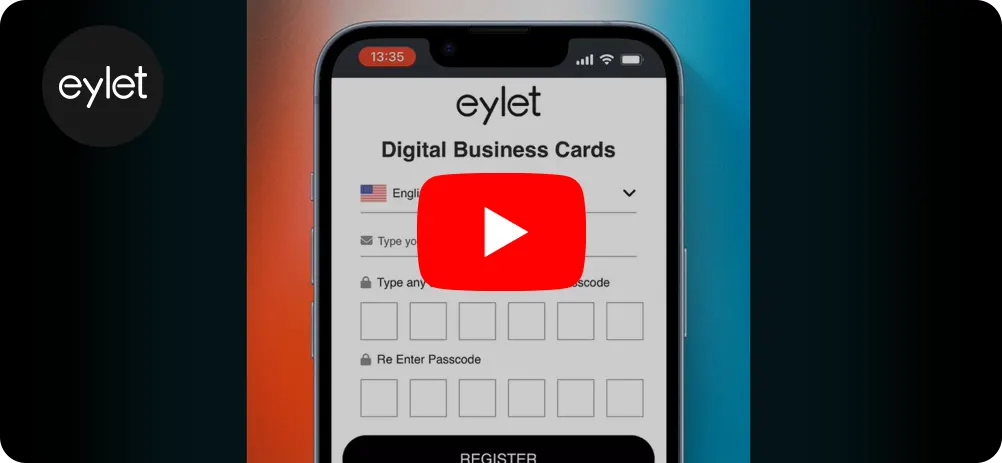
Getting Started Video Guide.
https://eylet.com/d/fr/lqhlty7oxo/notFound

Copy IconCopy Link

What is eylet

Slide 1
Slide 2
Slide 3
Slide 4
icons_bar
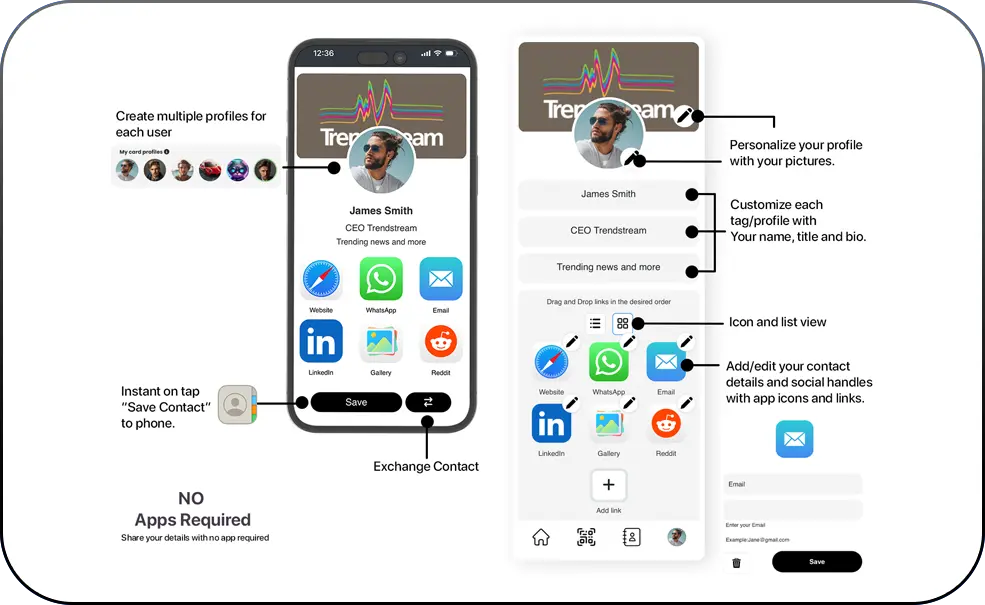
  • Quickly Share Contact Information
  • Store Multiple Profiles
  • Phone Numbers, Emails, Social Networks, Websites, and More
  • Add Over 60 Social Networks and Custom Links
  • Customizable QR Codes
  • Paper Business Card Scanner
  • Embed Videos, PDFs, and Picture Gallery
  • Save Directly to Phone Book
  • No Apps Required
Create account

How to add manually:

In some cases the eylet app may not scan the QR code. If you experience this you can add the card manually.

  1. Open your phone camera app
  2. Scan the QR code
  3. Open the link in web browser
  4. Copy the cards web address
  5. Paste it here and tap attach card

e.g https://eylet.com/d/xc/56hytujh/notFound
Scan QR code to open eylet on
your mobile.


Neither you or the person you are sharing with need any kind of app.