Pricing & Ordering
Adjust the quantity to see which special offers you unlock.
Frequently Asked Questions
Who can be a retail partner?
Any physical retail store with walk-in customers can become a reseller. Ideal locations include coffee shops, independent cafés, multi-location coffee chains, neighborhood cafés, grab-and-go kiosks, coffee carts, bakery cafés, artisan third-wave shops, co-working cafés, themed cafés, brunch cafés and campus cafés, gyms, spas and bodegas.
If you have a cash register and foot traffic, you can sell eylet digital business cards.
Why become a retail partner with eylet?
- USA-based support: We’re here to help with any questions or concerns.
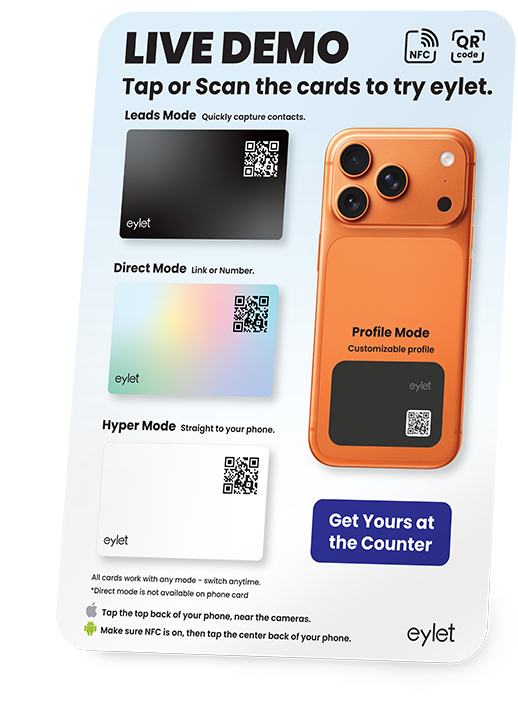
- Free working demo products: Customers can tap and experience the cards, boosting confidence and encouraging impulse purchases.
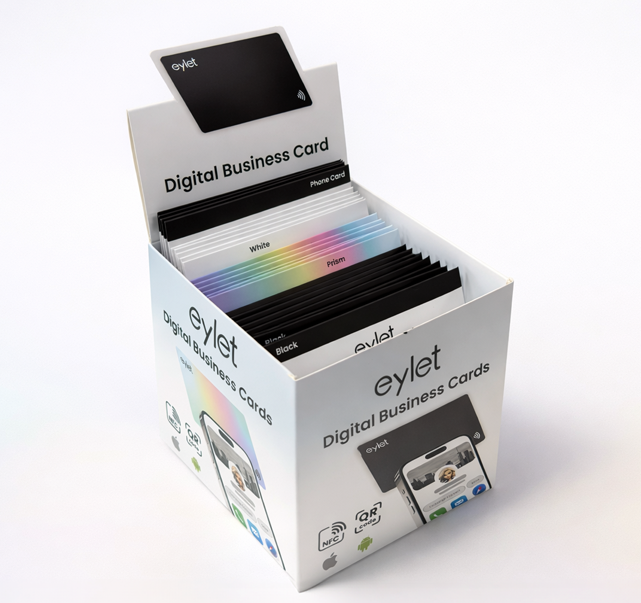
- No minimum order: Start with just a single 25-card multi-pack.
- Special offers: Order multiple boxes and get more value for less.
When do I get the Google Review Card?
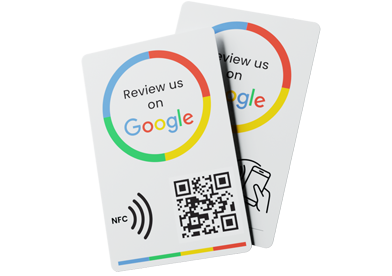
Each 25-card pack includes one Google Reviews card. It’s the first card you’ll see when you open the box. Simply remove it, set it up in your shop, and start encouraging more customer reviews.
What is a digital business card?
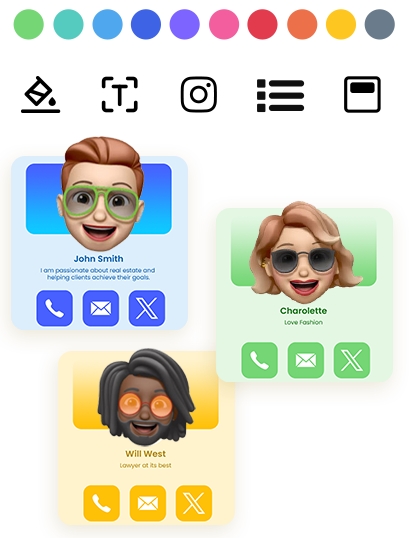
A digital business card is the electronic version of a traditional paper card. It lets you share your contact details, social links, and company info instantly using NFC tap or QR code.
Can I try the eylet app?
Yes. Visit eylet.com/login and sign up to explore the full live app experience.
Are there any subscription or hidden fees?
No. The eylet digital business card app is 100% free, no subscriptions, no hidden fees.
What languages does eylet support?
eylet supports 14 languages including English, Spanish, German, Italian, French, Portuguese, Swedish, Japanese, Dutch, and more.
Is an app required?
No app is required. Just tap or scan and open the link in any iPhone or Android browser.
Who is eylet?
eylet is a Delaware-based digital business card company with a global presence and inventory in 14 countries. In the past 12 months, eylet has shared over 1.5 million digital cards, reducing the need for paper while making contact sharing fully customizable and interactive.
Are all items barcoded for fast checkout and stock control?
Yes, US GTIN-12 / UPC-A (Global Trade Item Numbers) are used for barcode scanning at checkout and work with all major coffee shop POS systems, including Square, Toast, Clover, Lightspeed, and other popular platforms.
There are four retail products which all have US GTIN 12 (UPC-A) Standard barcodes and numbers printed on the back of the individual card packaging.
SKU / US GTIN 12 (UPC-A)
Eylet-Black-Card / GTIN-12 199874336992
Eylet-SilverPrism-Card / GTIN-12 199874976792
Eylet-White-Card / GTIN-12 199874562506
Eylet-Phone-Card / GTIN-12 198168466971
25 card bulk pack and Demo pack also use US GTIN barcodes and numbers, designed more for bulk stock management.
SKU / US GTIN 12 (UPC-A)
Eylet-25-Multipack / GTIN-12 199874829265
Eylet-25-Black-Cards / GTIN-12 199874949215
Eylet-25-SilverPrism-Cards / GTIN-12 199874563770
Eylet-25-White-Cards / GTIN-12 199874686332
Eylet-Demo-Pack / GTIN-12 199874252131
Add a new SKU and GTIN barcode in Square POS:
- Sign in to your Square Dashboard at squareup.com
- Go to Items (or Items and Orders > Items)
- Click Create Item
- Enter the Item Name
- (Optional) Select a Category
- Scroll to Variations and click Add Variation
- Enter the Variation Name (for example Regular, 250g, Single)
- Enter the Price
- In the SKU field, type your SKU code
- In the GTIN field, enter the GTIN / EAN / UPC barcode number
- (Optional) Enable Inventory Tracking and set stock quantity
- (Optional) Assign the item to a specific location
- Click Save
To scan the barcode instead of typing it:
- Click the Barcode or GTIN field
- Scan the barcode using your connected scanner
- Square will auto-fill the number
Add a new SKU and GTIN barcode in Toast POS Web and Handheld:
Log in to Toast Web on a desktop browser Go to Products then Product Setup Select Items from the menu Click Add Item or select an existing item to edit
Enter the Item Name Choose the correct Menu Group Set the Price Assign the Tax category if required
Scroll to the Advanced or Item Details section Find the SKU field and enter your internal SKU value Find the Barcode or GTIN field Enter the full GTIN barcode number only numbers no spaces
If the barcode field is not visible Go to the item settings and enable Barcodes for inventory Or check that Inventory Management is turned on for your account
Click Save Publish changes to push the item to all terminals
Test by scanning the barcode at a Toast terminal Confirm the correct item appears and adds to the order
Using Handheld Device:
Wake up the Toast handheld and sign in with a manager or admin PIN
From the home screen tap Settings Tap Restaurant Setup or Menu Management Tap Items
Tap Add Item or select an existing item to edit
Enter the Item Name Select the Menu Group Set the Price Assign Tax if required
Scroll down to Item Details Tap SKU and enter your internal SKU Tap Barcode or GTIN Enter the full GTIN number digits only no spaces
If you do not see SKU or Barcode Tap Advanced Settings Make sure Inventory Management and Barcodes are enabled You may need manager permissions
Tap Save Tap Publish or Sync to update all devices
Test by scanning the barcode with the handheld camera or scanner Confirm the correct item appears
Adding a SKU and GTIN barcode on the Clover Mini or Clover Flex:
Open Inventory on your Clover device.
Tap Add Item
Enter Item Name
Enter SKU
Enter GTIN / Barcode
Enter Price
Select Category
Add Modifiers if needed (size, milk type, flavors)
Add Description if desired
Tap Save
The item is now live and scan-ready.
Adding a new SKU and GTIN barcode in Lightspeed POS:
Log in to your Lightspeed POS account.
Go to the Inventory section from the main menu.
Click Add Item or New Product.
Enter the Item Name for your product.
In the SKU field, type your unique SKU code.
In the Barcode / GTIN field, enter the GTIN number.
Fill in other required fields like Price, Category, Cost, Supplier if needed.
Optionally, add a description or notes for internal use.
Upload an image of the product if available.
Review all information for accuracy.
Click Save or Add Item to complete.
The item should now appear in your inventory list with the assigned SKU and GTIN barcode.
What are the free spare cards for?
We include a spare card for your convenience. It allows you to instantly replace a card if there is an issue with a customer, without any delay.
The spare card is free and looks exactly the same as the standard cards in the pack. If you do not need it as a replacement, you may sell it as normal inventory.
ExampleThe Black 25 Pack includes one extra black card, giving you a total of 26 black cards (25 + 1 spare). You can keep the extra card as a spare or sell it if no replacement is needed.
Spare cards are included with these packs:- Black
- White
- Silver Prism
- Phone Card
Multipacks do not include spare cards. If you experience a customer issue, we will be happy to send a replacement to you or directly to the customer’s address.
Important noteThe spare card is separate from the free Google Review Card, which is an additional free card included in each 25 box pack.
Can I sell the Free Google Review Card?
Yes. If you do not need it for your own use, you can sell the Google Review Card.
The recommended retail price is $16.99.
US GTIN-12 (UPC) code for your POS/till system: 198168229880