Eylet Logo
  • Flag English ▼
  • App

    App

    • App Features
    • Comparison
  • Get Started

    Get Started

    • Digital Business Cards
    • Google Review Cards
    • Phone Card
    • Wristband
    • Phone Cases
    • Teams
  • Cards

    eylet Digital Business Cards

    • 2 Pack Black and Prism
    • 2 Pack White
    • 5 Pack Black
    • 5 Pack Prism
    • Google Cards
  • Wristband
  • Phone Card
  • Google Cards
  • Card Multipacks
  • Teams
  • Pricing
  • Support
  • Blogs
  • Login/Sign Up
  • US Flag English ▼

Design Your Own eylet Card with Free Canva Templates

eylet Canva card designer
Your browser does not support HTML5 video.
Canva template preview

Blank Templates

Landscape

Blank landscape Canva template Use this

Portrait

Blank portrait Canva template Use this

You can use these Demo Templates

Landscape

Landscape Canva demo template 1 Use this

Landscape

Landscape Canva demo template 2 Use this

Portrait

Portrait Canva demo template 1 Use this

Portrait

Portrait Canva demo template 2 Use this

Step by Step Guide on how to edit the Canva template

Step 1

Click the “Use This” button on any of the templates above.
Step 1: Click the “Use This” button on any of the templates above.

Step 2

Clicking the “Use This” button will open Canva on your browser. Create a Free Canva account if you don't have one.
Step 2: Clicking the “Use This” button will open Canva on your browser. Create a Free Canva account if you don't have one.

Step 3

Click the “Use template for new design” button in Canva.
Step 3: Click the “Use template for new design” button in Canva.

Step 4

You can upload your image files through the “Upload” button on the sidebar menu. The Canva template has both sides of the card, front and back.

Please note the back has a white blank square in the top right hand corner.
Step 4: You can upload your image files through the “Upload” button on the sidebar menu. The Canva template has both sides of the card, front and back.Please note the back has a white blank square in the top right hand corner.

Step 5

Click on the front side of the card. Add your logo, name, title, background colour etc.
Step 5: Click on the front side of the card. Add your logo, name, title, background colour etc.

Step 6

Then click on the back of the card. Please make sure that you do not cover the white empty box in the top right corner with your images or text.

Do not change the position of the white empty box as this is for the QR Code which is already printed on the DIY cards.

To keep the white empty box clear you can change its position using the “Position” button then change the order of images and text until the white box is at the top.
Step 6: Then click on the back of the card. Please make sure that you do not cover the white empty box in the top right corner with your images or text.Do not change the position of the white empty box as this is for the QR Code which is already printed on the DIY cards.To keep the white empty box clear you can change its position using the “Position” button then change the order of images and text until the white box is at the top.

Step 7

Once your happy with the design and the white box is clear, click the share button on the top right corner of Canva menu and download your designs as PNG.
Step 7: Once your happy with the design and the white box is clear, click the share button on the top right corner of Canva menu and download your designs as PNG.

Step 8

Print on a Test Print Card before you print on actual eylet cards. If your happy with the test print then proceed to print on eylet cards.
Step 8: Print on a Test Print Card before you print on actual eylet cards. If your happy with the test print then proceed to print on eylet cards.
Theme Builder

Theme Builder

Choose from over 20 predefined themes, customise and design your own.
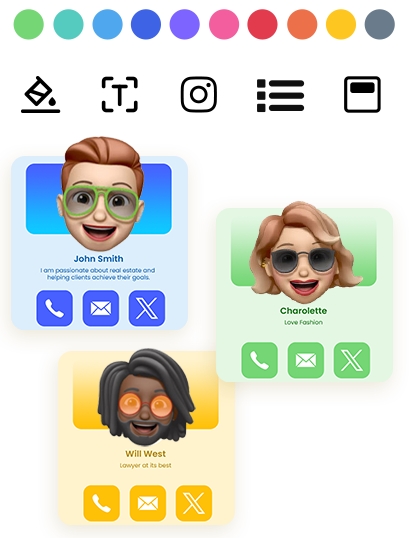
Theme Visual
AI Card Scanner

AI Card Scanner

Scan paper business cards in 60+ languages with AI assistance.
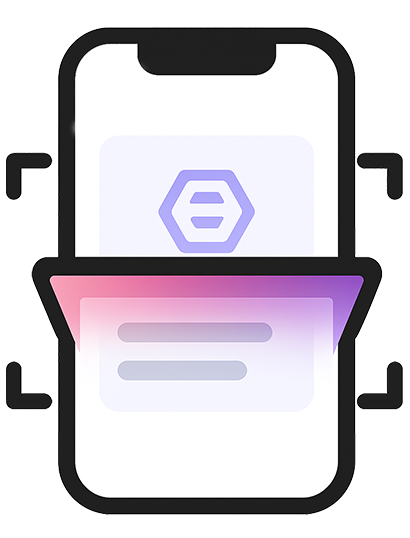
Scanner Visual
Multiple Profiles

Multiple Profiles

Share instantly via NFC taps, compatible with most smartphones.

Quick Switch

Quick Switch

Instantly change which profile is shared when you tap your eylet device.
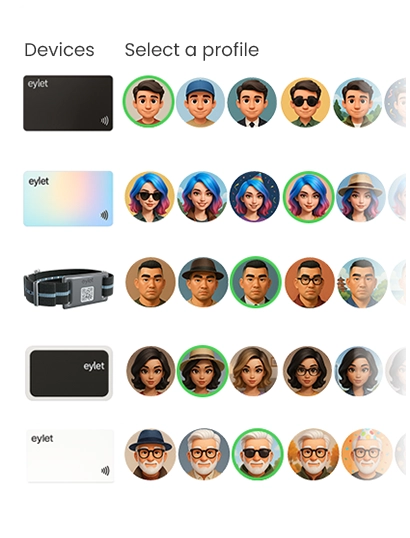
QR Visual
Profile Editor

Profile Editor

Personalize your profile with your banner image and profile picture, also add details.
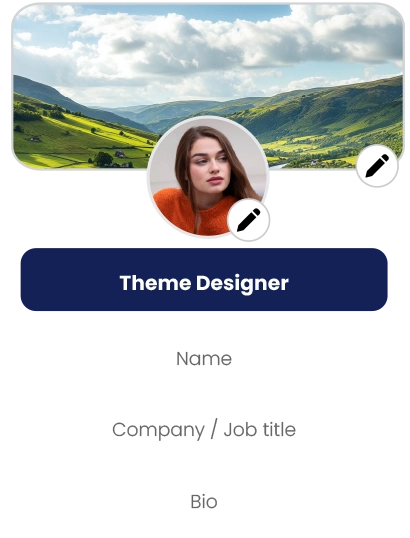
Editor Visual
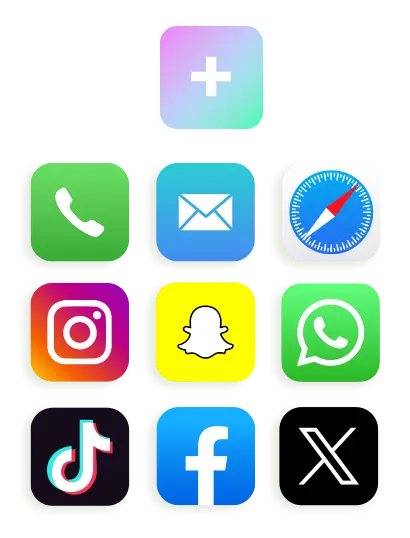
Add your links

Add your links

Embed Video, Google Review Link, Facebook, Instagram, PDF, Images, custom links and over 65 other social network links.
Dark Mode Visual
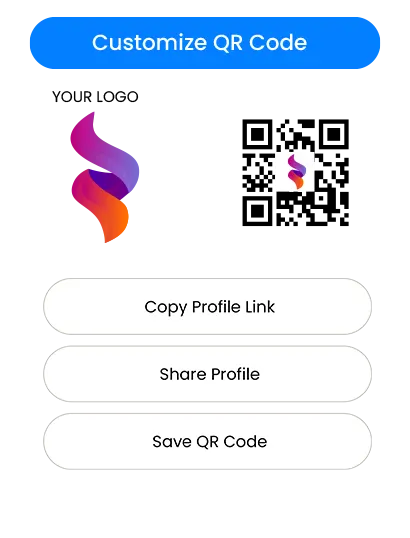
Customise QR Code

Customise QR Code

Save your QR code, customise it and share it.
Sync Visual
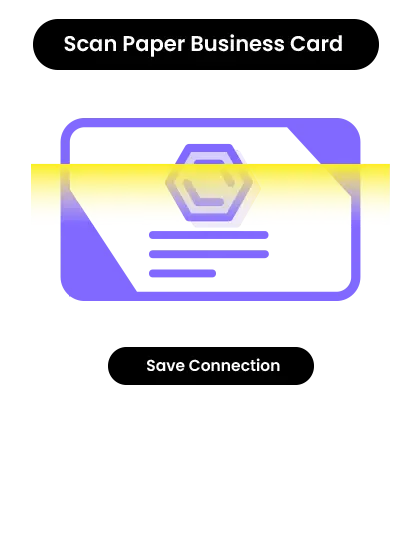
Card Scanner

Card Scanner

It's easy to scan paper cards and save as contacts, with eylet AI business card scanner.
Google Review Visual
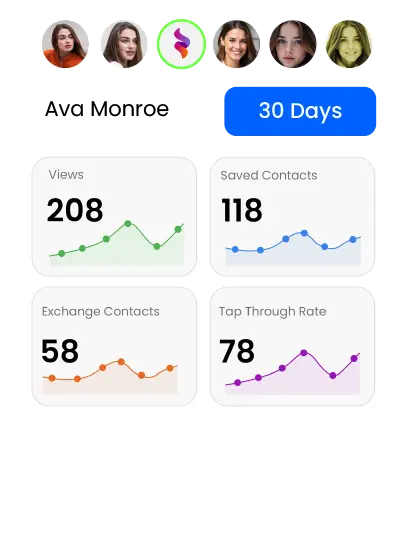
Advanced Analytics

Advanced Analytics

Comprehensive visual data on your views, clicks, save to phonebook and exchanges.
Packs Visual
Contacts

Contacts

Manage and export contacts in one place, and add details to existing contacts.
Dashboard Visual

⇠ Swipe to Explore ⇢

eylet is a next generation digital business card platform offering NFC enabled cards, tap to share technology, Teams, and customization designed for individuals and businesses of all sizes.

eylet devices

  • 2 Pack Black and Prism
  • 2 Pack White
  • 5 Pack Black
  • 5 Pack Prism
  • Google Cards
  • Wristband
  • Phone Card

Features

  • App Features
  • Comparison
  • Teams

Getting Started

  • Digital Business Cards
  • Google Review Cards
  • Phone Card
  • Wristband
  • Phone Cases
  • Teams

Support

  • Help Guides
  • Contact Support
  • Card Designer
  • Contact Us
  • eylet Partners Program
  • Blogs

Copyright © 2026 eylet.com. All logos and trademarks are the property of their respective owners. All rights reserved.

eylet LLC, Cheyenne, Wyoming, 82001, United States

Privacy Policy | Terms and Conditions | Cookie Policy | EULA