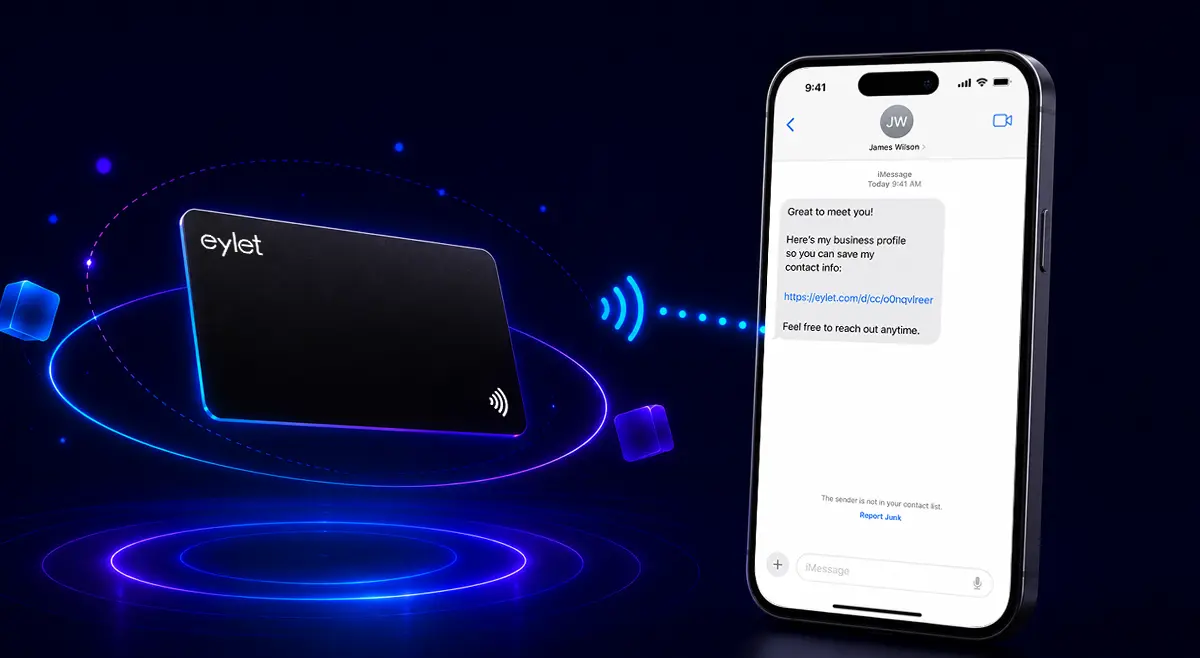
How to Share a Business Card via Text Message
Not every exchange happens in person. Someone asks for your details over the phone, on a call, or after a conversation that started somewhere other than face to face, and a physical card does not help at all in that moment. Sharing your business card by text message solves a different problem than tap or scan does, here is how it actually works.
Sharing by text message means sending a link to your digital profile rather than a photo of a card or a manually typed contact block. The recipient opens the link in their phone's browser, no app required, and can save your details straight from there. It works whether or not you have a physical card on you.
Why Texting a Link Beats the Alternatives
Before a link-based profile, sharing details by text usually meant one of two things, and both have real problems:
• A photo of a printed card. Hard to read on a small screen, cannot be tapped to save as a contact, and nobody manually retypes a phone number off a photo if they can avoid it.
• Typing out name, number, and email by hand. Slow, easy to fumble a digit, and it stops being worth the effort the moment you want to include more than the basics.
A link to a digital profile skips both problems. It opens instantly on any phone, includes as much or as little as you have added to your profile, and stays current even if you sent that exact text message six months ago.
How the Link Gets Sent
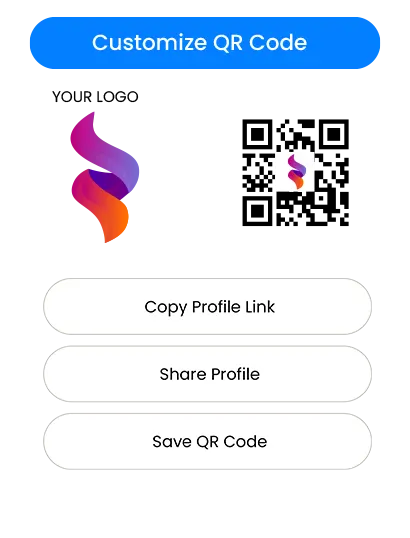
Open your profile and copy the share link, the same link your NFC card or QR code points to.
Paste it into a text message, an email, a LinkedIn message, or anywhere else that accepts a link.
The recipient taps it and your profile opens in their browser, no app, no download.
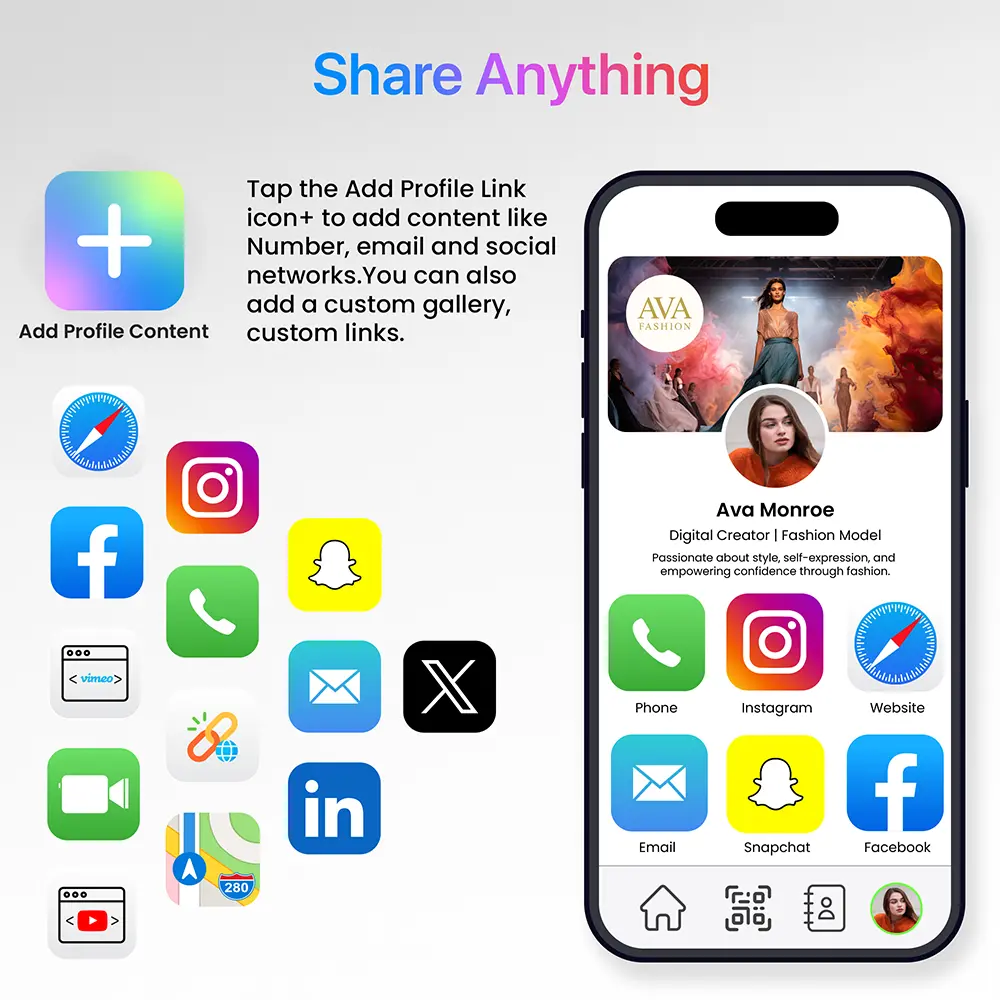
They save your contact, click through to whatever links you have added, social profiles, a Google Review link, a booking page, all from that same page.
Situations Where Sending a Link Makes More Sense Than a Tap
• Phone conversations. Someone asks for your details on a call, no card to tap, so a text with the link does the same job.
• Left your card behind. The profile lives on your account, not just the physical card, so you can always send the link even without one on you.
• Following up after a meeting. A quick text with your link after the fact reinforces the exchange and gives them one more chance to save your details.
• Remote introductions. Someone connects you with a colleague over text or email, the link works exactly the same way with no in-person moment needed at all.
What the Recipient Actually Sees
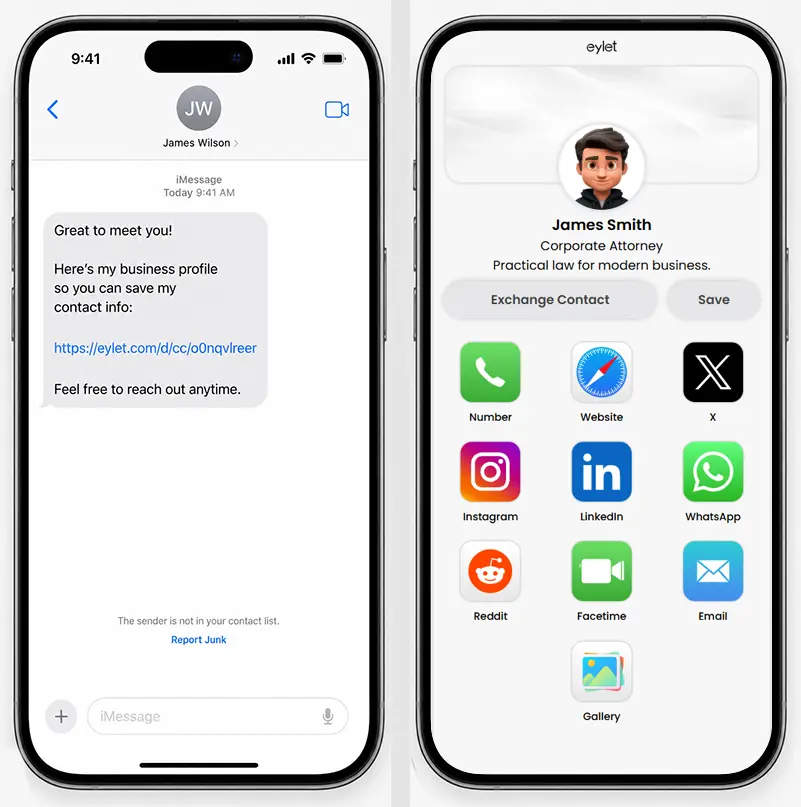
This matters more than it sounds like it should. A text message with a bare, unfamiliar link often gets ignored, people are cautious about tapping links from numbers they do not recognize. A few things help here:
• Send it right after you have talked, not cold. A link that arrives moments after a real conversation reads very differently than one from an unknown number out of nowhere.
• Add a line of context. "Here's my contact info" alongside the link does more than the link alone.
• Keep the profile itself clean when they land on it. Whatever they tap into should load fast and make it obvious who you are in the first few seconds, the same clarity that matters on a tapped card matters just as much on a texted link.
 Text Message vs Other Ways to Send the Same Link
The link itself does not change based on how you send it, but the channel you pick affects how likely someone is to actually open it.
| Channel | Best for |
| Text message | Right after a phone call or in-person conversation, highest open rate of any channel since it lands where people already are |
| Formal introductions or when you are already writing a longer message and the link is one part of it | |
| WhatsApp or messaging apps | Contacts you already message regularly, the link fits naturally into an existing thread |
| AirDrop or nearby share | Standing right next to someone with no card on hand, works instantly but only within range |
None of these are wrong, the right one usually comes down to whichever channel the conversation already happened in. A call ends with a text, an email thread gets a link dropped in, a WhatsApp exchange stays a WhatsApp exchange.
Protecting a Link That Might Get Forwarded
A texted link behaves differently from a tapped card in one important way, it is easy to forward. A card only reaches whoever physically has it, a text can be screenshotted or forwarded to someone else entirely without you knowing.
• Most of the time this is fine. If your profile only has business contact details and public links, a wider reach is not really a risk, it is the same information you would hand to anyone at a networking event anyway.
• Lock it down if the profile has anything more sensitive attached. A Privacy Wall PIN keeps the profile behind a 4-digit code, useful if you have documents, pricing sheets, or client-specific material linked that should not spread past the person you actually sent it to.
• Update instead of worrying about old texts. Since the link points to a live profile rather than a static file, updating your details once fixes every copy of that link that has ever been sent, old texts included.
 Frequently Asked Questions
How do I share my business card by text message?
Copy your profile's share link and paste it into a text message. The recipient taps it and your profile opens in their phone's browser, no app needed on either end.
Does the recipient need to download anything to open the link?
No. The link opens directly in their phone's default browser, the same way any other web link does.
Can I text my link if I do not have my physical card with me?
Yes. Your profile exists independently of the card, so the link works whether or not you have anything to tap or scan at that moment.
Is texting a link the same as sending a vCard file?
Not quite. A vCard file has to be downloaded and opened before it does anything. A link opens instantly and shows a full profile, contact details plus anything else you have added, rather than just a static contact card.
What if the person I am texting is cautious about clicking links from an unknown number?
Send it right after a real conversation rather than cold, and add a short line of context. A link that follows an actual exchange reads very differently than one that arrives out of nowhere.
One link, every way to share it.
Tap it, scan it, or text it, the profile behind it is always the same.