What Makes a Business Card Scannable
"Scannable" gets used loosely. Sometimes it means a QR code, sometimes an NFC chip, sometimes just a phone camera pointed at a printed card. They are not the same thing, and knowing the difference actually matters if you are choosing between them.
A scannable business card is one a phone can read without anyone typing anything by hand. That covers a few different mechanisms, a QR code a camera reads, an NFC chip a phone taps, or optical text recognition that reads a printed card. Each does the same basic job, get your details into someone's phone, but they get there differently, and knowing which kind you are dealing with changes what you should expect from it.
The Four Ways a Card Actually Gets Scanned
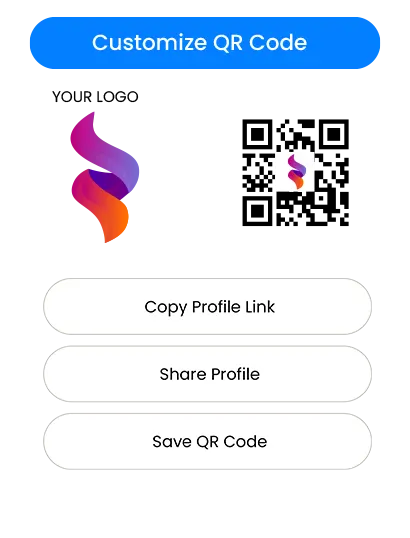
• QR-based. A printed pattern a phone camera reads. Works on almost any smartphone, no hardware needed on either end.
• NFC-based. A chip inside the card that a phone reads by tapping, not scanning in the visual sense. Faster than a QR code when it works, but depends on the receiving phone having NFC turned on.
• Hybrid. Both NFC and a QR code on the same card, so it works whichever way the receiving phone can handle. This is the setup that fails the least often, since one method covers for the other.
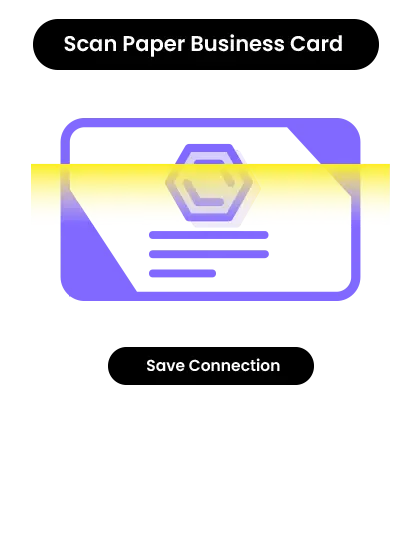
• Image recognition. A printed paper card scanned with a phone's camera, then read with text recognition rather than a code. This turns a traditional printed card into digital contacts, a different job than sharing a digital profile in the first place.
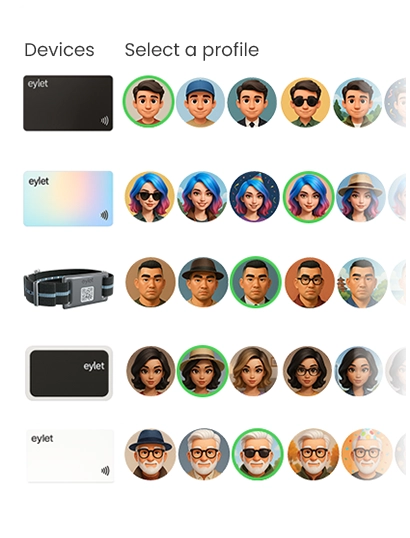
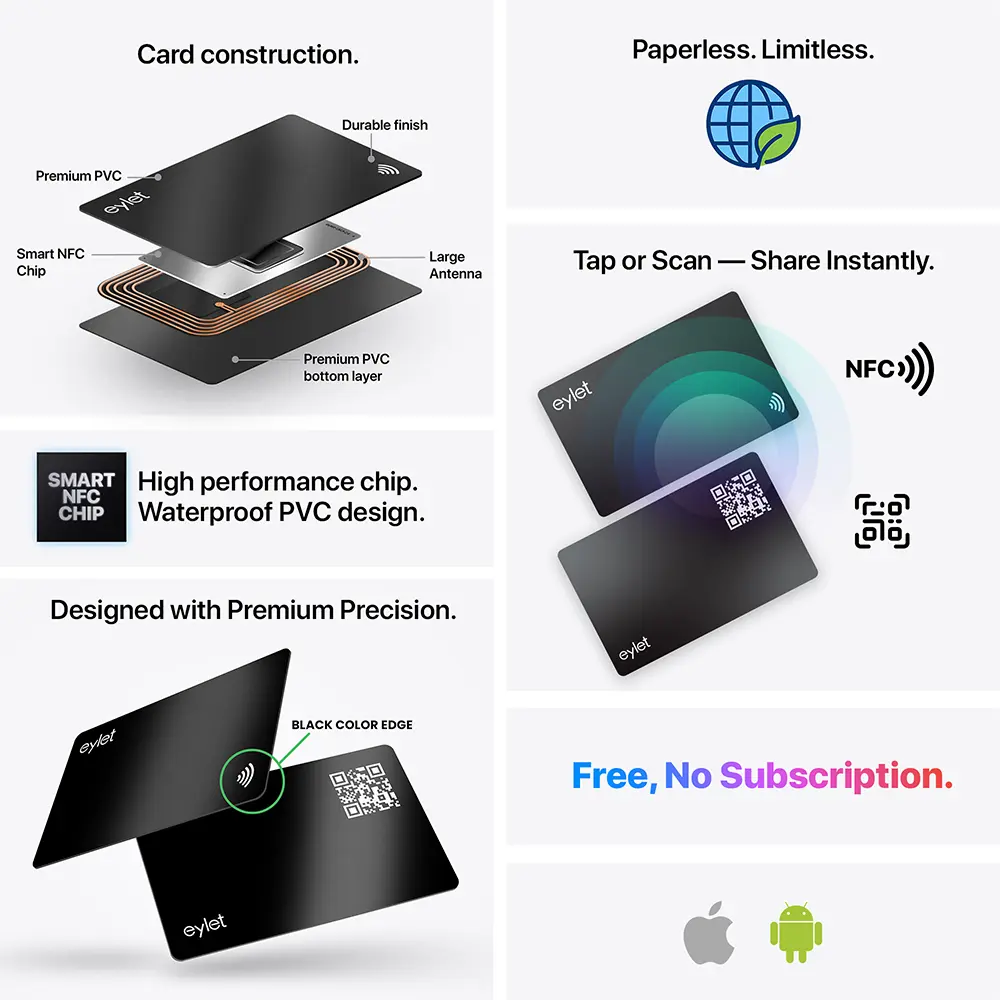 eylet Digital Business Card Features
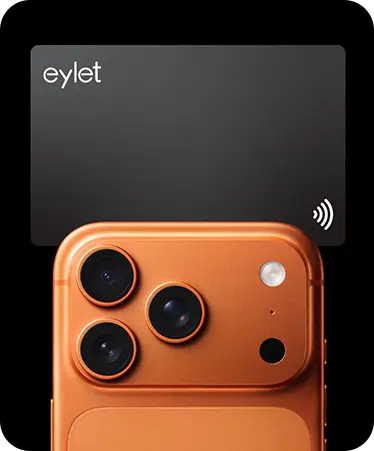
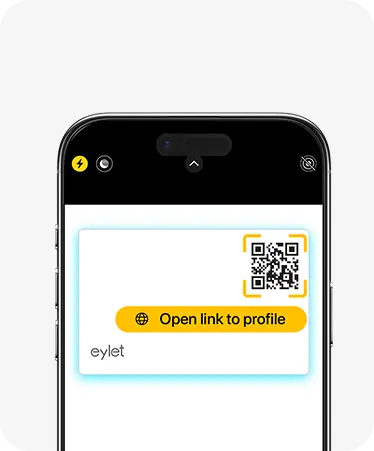
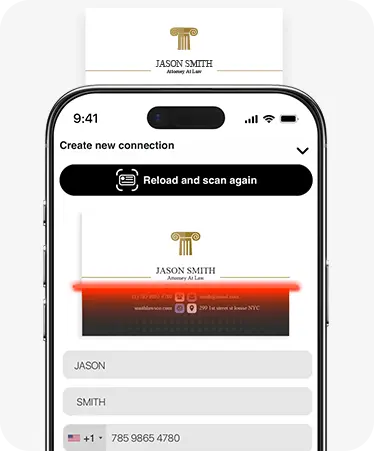
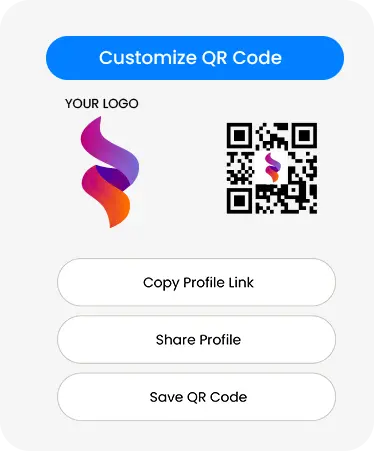
eylet cards combine the hybrid approach, NFC tap and QR fallback on the same card, plus the paper card scanner for the opposite direction, turning someone else's printed card into a saved contact of your own.
Why Hybrid Beats Picking Just One
A card that only does NFC fails silently on an older phone or one with NFC switched off, nothing happens, and the person receiving it has no idea why. A card that only has a QR code works everywhere but loses the near-instant feel of a tap. Put both on the same card and the failure mode disappears, if one does not register, the other one does.
This matters more the less control you have over who you are handing the card to. A close colleague's phone you already know. A stranger at a conference, you have no idea what device they are carrying, which is exactly when a hybrid card earns its keep.
The Four Types at a Glance
| Method | Needs on the receiving phone |
| QR-based | Just a camera, works on almost any smartphone |
| NFC-based | NFC hardware, switched on |
| Hybrid (NFC + QR) | Either one, whichever the phone supports |
| Image recognition | A camera and an app capable of reading printed text |
The pattern across all four is the same one that shows up everywhere in this space: the option that works on the widest range of devices is usually the one worth defaulting to, speed and polish matter less than the scan simply working the first time.
Matching the Type to the Situation
None of the four methods is universally best, the right one depends on where and how the card actually gets used.
• Professional networking, one on one. Hybrid wins here almost every time. You have no control over the other person's phone, so covering both NFC and QR removes the guesswork entirely.
• Printed materials, flyers, signage. QR only, since there is no way to tap a flyer. The code just needs to be large enough and printed with enough contrast to scan cleanly from a normal viewing distance.
• Retail counters and checkout moments. NFC tends to win here, the interaction is quick and repeated dozens of times a day, and a tap is faster than pulling out a camera for each customer.
• Receiving someone else's printed card. Image recognition is the only one of the four that applies, since you are the one doing the scanning rather than the one being scanned.
What Actually Breaks a Scan
Most scan failures trace back to a handful of predictable causes, worth knowing regardless of which method a card uses.
• Physical damage or wear. A scratched QR code or a cracked NFC chip stops working the same way a torn page stops being readable. Cards that see daily use in a wallet or bag wear down faster than most people expect.
• Metal interference with NFC. A metal card body can interfere with the antenna inside an NFC chip, sometimes needing a couple of attempts to register where a PVC card would read on the first try. Not a guaranteed problem, but a real trade-off for the material.
• Poor lighting or glare on a QR code. Cameras read QR codes by contrast, dim lighting or a glossy, reflective surface makes that harder, sometimes enough to fail the scan entirely.
• NFC turned off at the settings level. Some people disable NFC to save battery or out of habit. The chip itself is fine, the phone just is not listening for it.
• A phone genuinely too old for NFC. Older devices simply do not have the hardware. No amount of troubleshooting fixes that, which is exactly why a QR fallback exists in the first place.
None of these are hypothetical, they are the actual reasons a card that worked yesterday does not work today. A hybrid card does not eliminate every failure mode, but it means a single point of failure rarely takes the whole card down with it.
Frequently Asked Questions
What makes a business card actually scannable?
A mechanism a phone can read without manual typing, most commonly a QR code, an NFC chip, or text recognition on a printed card. The scannable cards worth using combine more than one of these so the card works no matter what phone is on the other end.
Is NFC or QR better for a scannable card?
Neither is strictly better, they solve different problems. NFC is faster when it works, QR works on more phones. A card carrying both avoids having to choose.
Can a printed paper card be scannable too?
Yes, through image recognition rather than a code. A phone camera reads the printed text and turns it into a digital contact, useful when you are the one receiving a traditional card rather than sharing your own.
Do scannable cards work internationally?
Yes. Both QR and NFC are global standards, not tied to a specific country or carrier, so a scannable card works the same way wherever you use it.
Why do some scannable cards fail to work?
Usually because the card relies on only one method. An NFC-only card fails on a phone with NFC turned off, a QR-only code fails if it is scratched, poorly lit, or too small. A hybrid card with both is far less likely to fail outright.
Tap, scan, or both, either way it works.
No subscription. NFC and QR fallback on every card.